How Do You Fully Set Up a Google Business Profile? A Step-by-Step Checklist
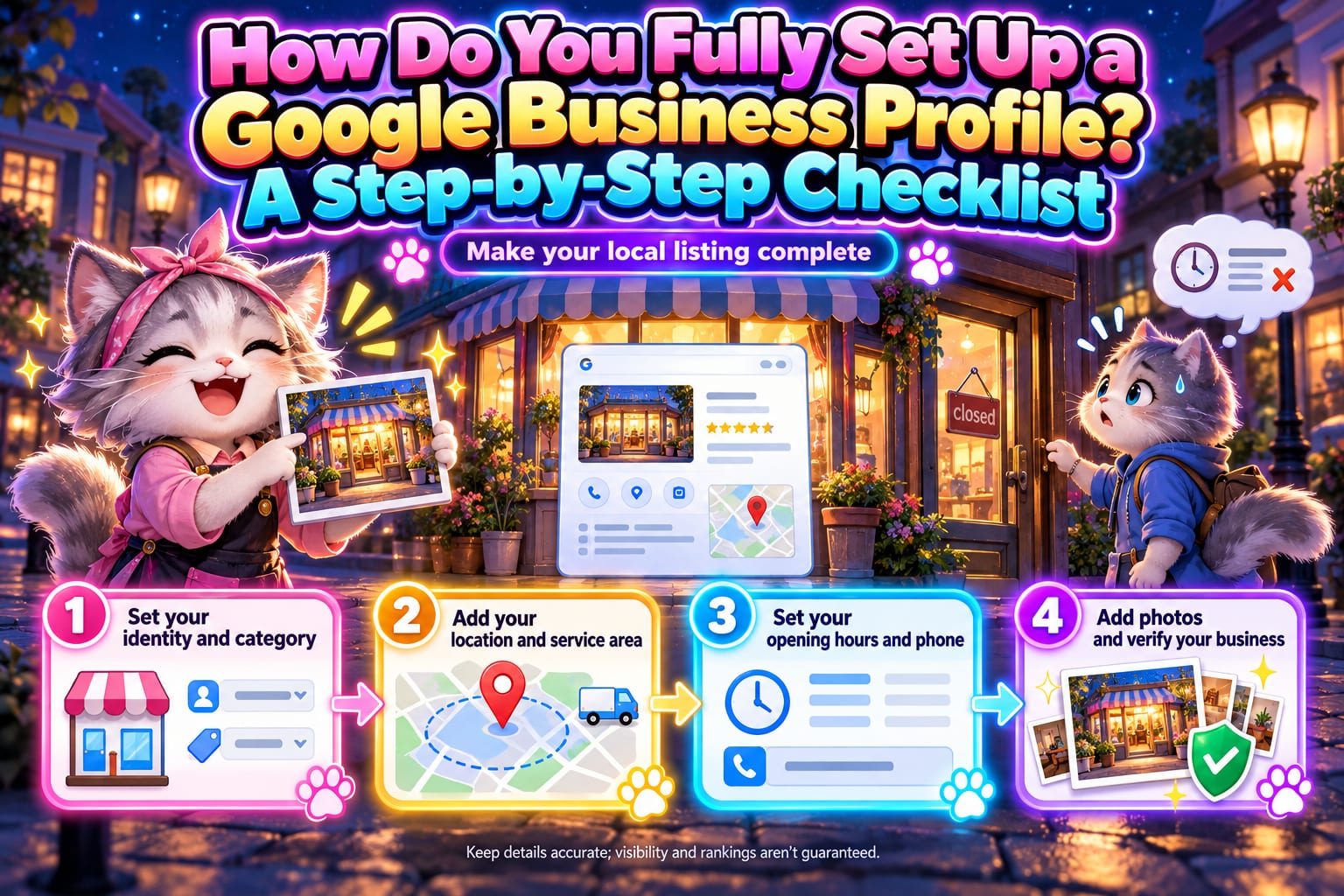
To fully set up a Google Business Profile, focus on entering the correct business name, category, address or service area, business hours, and contact information, then add photos and service details and complete verification. Complete does not mean forcing something into every field. It means helping customers understand what you offer, where you provide services, and when they can contact you. This article walks you through each setting, then finishes with a check from the customer's perspective.
What Information Should You Prepare Before Starting?
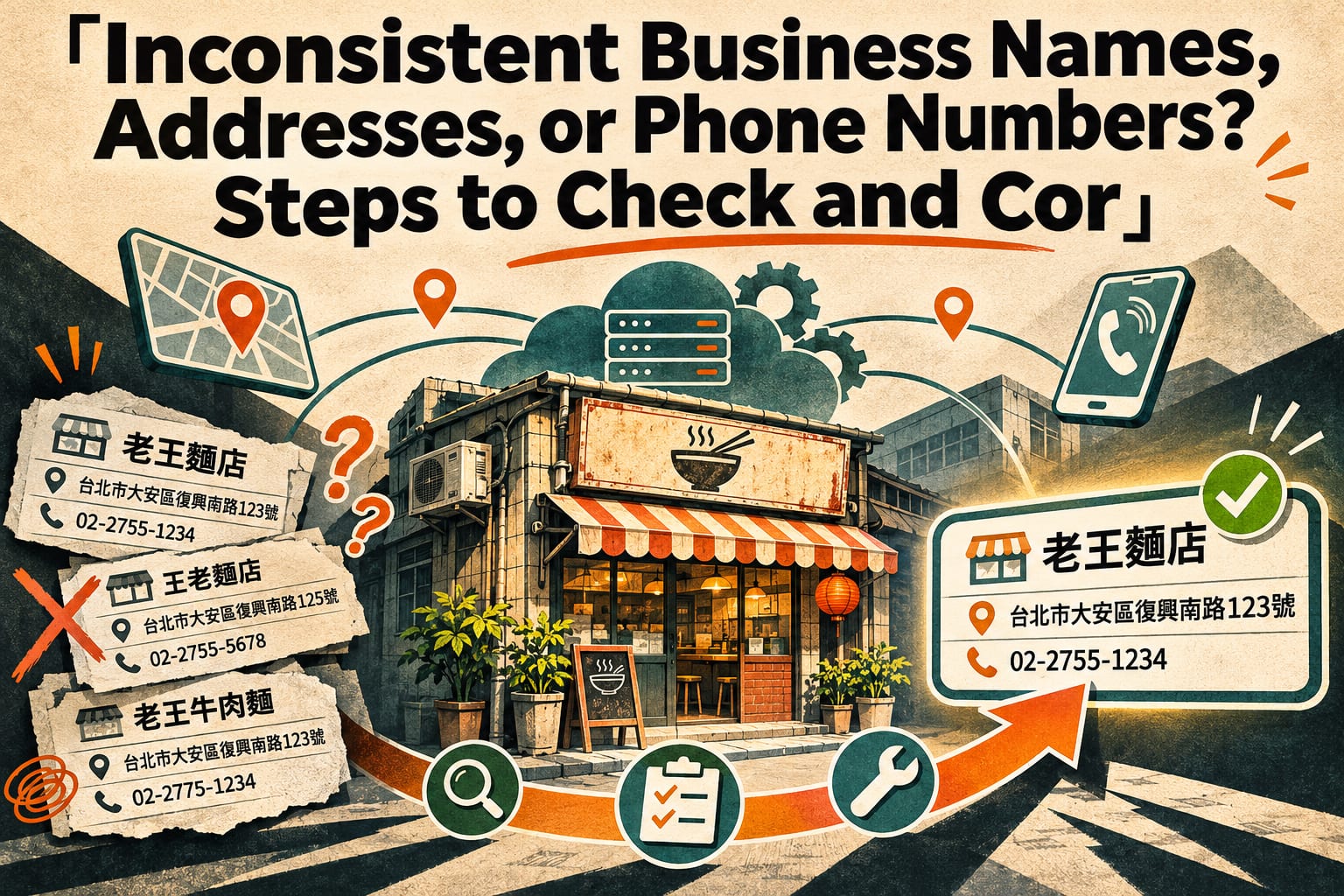
First, gather the business name you actually use, your main services, phone number, website, business hours, and photos of your storefront, workspace, or services. Your name, address, and phone number should match your official website and other public information. If your address includes a floor or unit number, make sure it is clearly stated.
Next, search for your business name and address to check whether a profile already exists and avoid creating a duplicate. Google Business Profile is primarily intended for eligible businesses that interact with customers in person. Online-only brands should not assume they can create one simply because they have a website. Refer to the latest official guidance for eligibility requirements.
Seven Steps to Set Up a Google Business Profile
You can usually perform the following steps by signing in to your management account and opening the business management interface in Google Search or Maps. Button names, available fields, and verification methods may change, so refer to the latest official guidance.
Claim an existing profile first, or add your business. Search for the name and address in Google Maps. If you find your business, use the option to request management access or ownership; add a new business only if none exists. Once finished, confirm that the management interface displays the correct business to avoid claiming another business with the same name.
Enter your real name and primary category. In the business information section under “Edit profile,” use the name shown on your signage and used in everyday communications with the public. Choose the primary category that best matches your core business, and add other categories only for services you actually provide. Review everything afterward to make sure you have not inserted location names or service keywords just to gain visibility.
Set your address or service area. Complete the location fields according to how you actually serve customers. Display your address in accordance with the rules only if customers can receive services at your location. Businesses that only visit customers and do not receive them at their address should hide the address and set a service area according to the rules. Afterward, check that the map pin, floor and unit numbers, or service areas are correct.
Complete your phone number, website, and business hours. In the contact information and business hours fields, enter a phone number that someone answers, the correct website, and the hours when you actually serve customers. If you close for lunch, enter separate time periods. Afterward, call the number yourself, open the website, and check your regular hours, days off, and special hours.
Clearly describe your business, services, and pricing. In the business description, explain whom you serve, your main services, and how to book. If the interface offers fields for services, menus, or bookings, add the corresponding information. After saving, confirm that the information is still current, clearly state any conditions that apply to prices, and leave fields that do not apply unfilled.
Upload photos that help customers make decisions. In the photo management section, add clear photos of your storefront, entrance, space, products, or services. You can also add a logo. After uploading, check for blurriness or incorrect orientation and confirm that the photos reflect the current situation. Those who work at customers' locations can use photos of their tools, work process, and completed work shared with permission.
Follow the on-screen instructions to complete verification, then check the public results. Submit verification in the management interface as prompted, using the methods the system provides. Do not assume every business can freely choose its method. After completion, use another account that does not manage the business to view the results in Search and Maps. If the content has not yet updated, first check whether review or verification is still pending.
How Can You Write Your Business Description?
The following fictional home cleaning business example shows how to turn vague promotional language into information customers can use. Choose your actual category from the options available in the interface.
Before: “Taipei's No. 1 recommended cleaning service! The most professional, the best value—we can clean anything!”
After: “We provide regular residential cleaning and move-in and move-out cleaning in Taipei City, by appointment. Services include cleaning kitchens, bathrooms, and general living spaces. Please provide the floor area, photos of the space, and your preferred date in advance so we can confirm the services needed and provide a quote.”
This description answers questions about the service area, services offered, and how to request a quote. If the business does not receive customers at its address, it should not present that address as a storefront customers can visit. The service area should also include only locations where it can actually accept jobs.
What Common Mistakes Leave Information Incomplete?
- Stuffing the name with keywords: Adding phrases such as “recommended in Taichung,” “cheap,” or “No. 1” to the name may violate naming guidelines. Use your real business name and put service highlights in the appropriate fields.
- Displaying an address where customers cannot be served: Customers may follow the map only to discover there is no storefront, resulting in a wasted trip. Set your address and service area according to how you actually operate.
- Entering only regular business hours: Update special hours for public holidays, temporary closures, or extended hours over long holiday weekends. Do not rely solely on posts to notify customers.
- Having photos that do not show the entrance: Even with beautiful product photos, customers may still not know how to enter your business. Add street-level views and photos of the address number and entrance.
- Never checking again after verification: Phone numbers, services, and booking links can all become outdated. Whenever you change your operating information, update your profile and check the public results as well.
Frequently Asked Questions
Can I Create a Profile Without a Physical Storefront?
If you provide services at customers' locations, such as home cleaning or repairs, you may qualify as a service-area business. Online-only services may not qualify. Check the latest official eligibility guidelines, and do not enter a fictitious address just to create a profile.
Why Is My Information Not Public Yet Even Though I Have Filled Everything In?
Verification or content review may still be pending, or you may need to resolve issues flagged in the interface. First, return to the management interface to check the status and provide any additional information requested. Refer to the latest official guidance for processing times and verification methods.
Will a Complete Profile Rank at the Top of Search Results?
There is no guarantee. Complete and accurate information helps customers understand your business, but local search rankings also involve factors such as relevance, distance, and prominence. Completing all the information does not guarantee a top ranking.
How Often Should I Check It?
You can schedule a basic monthly check to confirm that your phone number, website URL, photos, and business hours are still correct. Update the profile promptly when you move, change prices, change services, or approach a long holiday weekend. There is no need to wait until your scheduled review date.