How Do You Add LocalBusiness Structured Data? Examples and Checks
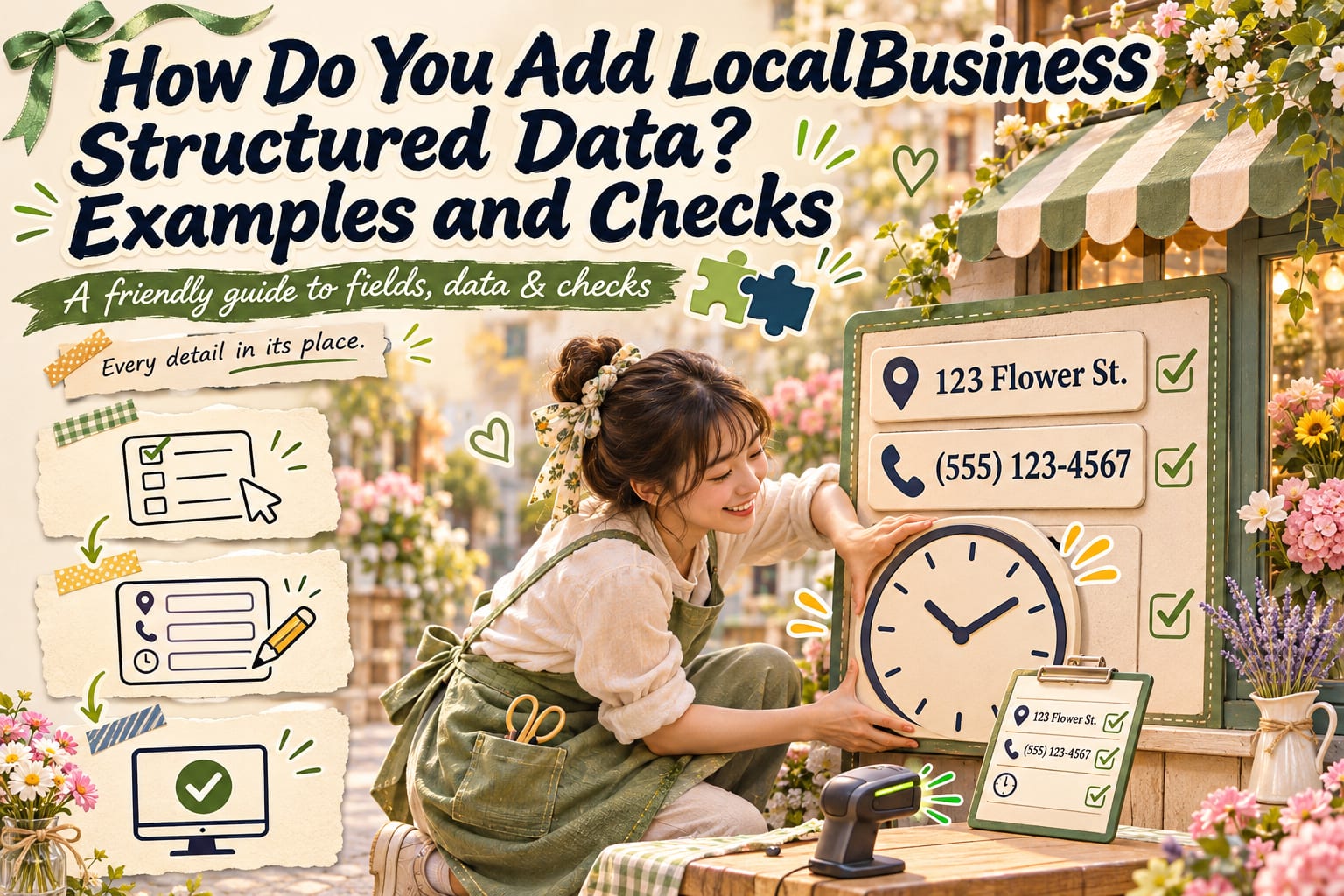
LocalBusiness structured data organizes a business’s name, address, phone number, and opening hours into fields that search engines can easily understand. You can add it through a structured data plugin, your website platform’s settings, or by asking a developer to add JSON-LD. Afterward, you still need to check that the fields, webpage content, and test results are consistent. This article will walk you through preparing your information, configuring fields, and understanding the difference between “the code is correct” and “the information is correct.”
Should You Check Whether It Fits Your Business Before Adding It?
LocalBusiness is suitable for describing specific local businesses or branches, such as restaurants, hair salons, repair shops, and professional service locations. If a type more closely matches your business, use it first. For example, restaurants can use Restaurant; there is no need to always choose the most generic LocalBusiness type.
If you work entirely online and have no physical business location that can be made public, do not list your home or a borrowed address just to fill in the fields. Evaluate types such as Person, Organization, or Service based on your actual situation. Being able to use a particular type of structured data does not mean you qualify for specific Google search features; refer to the latest official guidance.
Think of it as adding a clear information card to the sign outside your shop: it helps machines understand you, but the information still needs to be truthful.
How Do You Add LocalBusiness? Follow These Five Steps
Compile your basic business information in a document. Start by listing your name, public business address, phone number, opening hours, and corresponding webpage, and confirm that this information is also visible on your website. Once finished, compare each item, paying particular attention to floor numbers, phone numbers, and weekend hours so outdated information does not slip in.
Look for existing settings in your website’s admin panel. Search for “structured data,” “Schema,” or “business information,” and check whether your SEO plugin already outputs relevant data. You can search the page source in your browser for LocalBusiness or application/ld+json as an initial check for existing markup; you still need to use testing tools to check the actual output.
Choose a type and fill in the fields in the settings interface. Choose the business type that best matches your actual services, then enter your name, address, phone number, and opening hours. After saving, preview the page to confirm that the information displayed still matches the values you entered. Settings locations vary by platform; refer to the latest official guidance.
Place the data on the page that describes that location. For a single location, you can use a homepage or contact page that clearly introduces the business. For multiple locations, prioritize creating a separate page for each branch. If your platform does not provide these settings, ask a developer to create complete JSON-LD based on Schema.org definitions, place it inside a script tag on that page, and confirm that it can be read on the frontend.
Test the live URL after publishing. Use the two tools below to check it, fix any errors, and test again. Then confirm that the live page is not blocked by login restrictions or settings that prevent indexing. Passing a test only means passing that tool’s checks; it does not guarantee search appearance or rankings.
How Can You Fill In the Fields? See This Fictional Example
Suppose you run “Warm Light Florist,” have only one business location, and welcome customers from 10 a.m. to 6 p.m., Monday through Friday. The following demonstrates field content. The business name, address, and phone number are all fictional; replace all of them with your own information.
{
  "name": "Warm Light Florist",
  "telephone": "+886-2-2345-6789",
  "address": {
    "addressCountry": "TW",
    "addressRegion": "Taipei City",
    "addressLocality": "Da’an District",
    "streetAddress": "1F, No. 100, Example Road"
  },
  "openingHoursSpecification": [
    {
      "dayOfWeek": [
        "Monday",
        "Tuesday",
        "Wednesday",
        "Thursday",
        "Friday"
      ],
      "opens": "10:00",
      "closes": "18:00"
    }
  ]
}
This is an example showing how fields correspond to your information, not complete JSON-LD that can be embedded directly into a webpage. Plugins usually build the data structure for you. For manual implementation, a developer still needs to add information such as @context and the @type values for the business and nested objects. The business’s own official website URL and images should also be included according to the applicable specifications.
Use the 24-hour clock for opening hours. If you close for lunch, split the hours into two periods; if hours vary by day, enter them in separate groups as well. Do not mark a physical shop as open around the clock just because you accept online messages.
How Do You Check That It Has Been Added Properly?
First, use Schema Markup Validator and paste in the live page URL to see whether the tool detects the expected type and whether the fields comply with Schema.org vocabulary definitions.
Next, use Google’s Rich Results Test to check supported Google search features and related issues. These two tools have different testing scopes: one being able to read the data while the other does not show a particular result is not necessarily a contradiction.
Finally, manually verify the business name, address, phone number, and hours. Tools cannot know for you whether you really open on Sundays. If you have already set up Search Console, you can also use URL Inspection to confirm whether Google can access the page.
What Are Some Common Mistakes?
- The admin settings have been updated, but the live page still shows old information: Clear your website’s cache or your caching service’s cache, then test the public URL again.
- Multiple plugins output different information: Identify each source and coordinate maintenance to prevent conflicting phone numbers or hours for the same business.
- Every branch is given the same address: Each location should use its own information and corresponding page.
- Entering arbitrary information to eliminate warnings: Distinguish required fields from recommended fields. When real information is unavailable, do not fabricate reviews, prices, or addresses.
Frequently Asked Questions
Can I Add It Myself Without Knowing How to Code?
Yes. First check whether your website platform or existing plugins offer business structured data settings. You still need to test the live page after filling them in. If no relevant feature is available, give the field list above to your website maintainer to handle.
If I Have Completed My Google Business Profile, Does My Website Still Need It?
They are different data sources. Completing your Business Profile does not mean structured data has been added to your website. If you want your website to provide this markup, you still need to configure it separately and keep the information consistent across both.
Will Passing the Test Make My Business Appear in Search Results?
Not necessarily. Passing a test does not mean Google will definitely use the data or display a particular search appearance. Search appearance also involves indexing, content quality, and applicable rules, so it cannot be used to guarantee rankings.
What Should I Do After Moving or Changing My Opening Hours?
Update the webpage text, structured data, and other public business information together, then test the live URL. For holidays or temporary opening arrangements, also update the information using the methods your platform supports so customers do not make a wasted trip based on outdated hours.